


Wix Studio Two editor: a guided tour of the interface

Updated: 2 days ago
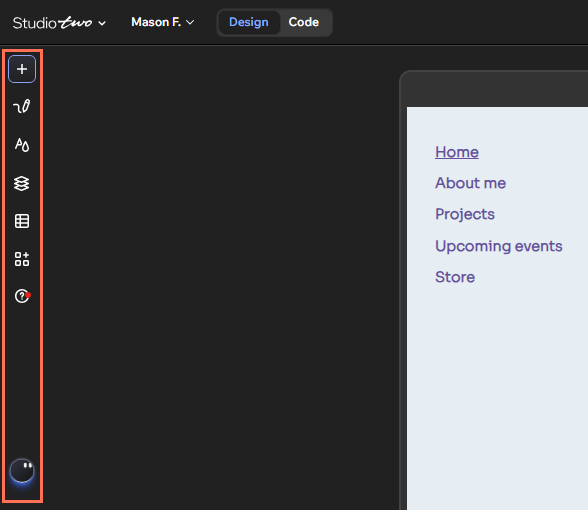
The Studio Two editor is organized into five areas: a top bar, a compact left panel menu, a movable canvas, a bottom action bar and the Inspector panel. Site-wide settings sit at the top, building tools sit on the left, and element settings appear when you select something on the canvas.
Status: Wix released the Studio Two editor in November 2026 to a small number of users, so your account may still open the classic Studio Editor.

Before you start
Check which editor you are in: Studio Two has a dark color scheme, the classic Studio Editor has a light one.
Open a site in the Studio Two editor to follow along.
Step by step
Start with the top bar. The top bar is split into left, center and right groups. It holds the main editing options for the whole site.
Use the left group of the top bar. The Studio Two dropdown leads to the dashboard, tool toggles and canvas display options. The Design / Code toggle switches between design mode and code mode. The site name dropdown opens the Site Overview panel.
Use the center group for structure and layout. Click the current page name to see and switch pages. Open the Customize Breakpoints dropdown to reach Responsive Settings, where you handle breakpoints, max width and mobile adjustments. The zoom dropdown scales the canvas from 10% to 600% without changing the breakpoint or canvas width.
Use the right group to undo, preview and publish. Undo and redo, Preview and Publish are on the right side of the bar.
Add content from the left panels. Add Elements offers Elements, Sections and Pages. Draw Element lets you pick a type (text, container, image, button, shape or video) and drag out its size on the canvas.
Manage styles and structure. Site Styles covers typography, colors and styled elements. Site Structure has separate tabs for pages, layers and global sections.
Reach the remaining panels. CMS opens your collections in the dashboard. My Business manages and installs business solutions. Help & Tutorials answers editor questions. The Aria avatar opens the AI assistant, which can generate and update content and organize site structure.
Work on the canvas. Select elements here, drag them into position, and use handles to resize or rotate where available. Some elements have a radius handle for rounder corners. Drag the sides of the canvas to check how a page looks at other widths.
Use the action bar for quick changes. When you select an element, the action bar appears at the bottom of the screen with common actions for it. A vector art element, for instance, shows color and opacity options.
Open the Inspector for everything else. With an element selected, click the Open Inspector icon at the top right. Depending on the element, the Design, Motion and Settings tabs cover styling, motion effects and data connections.
Check site status in Site Overview. Click the site name at the top left. The panel shows publish status, the URL, domain and favicon options, site info under Edit Info, SEO progress, Social share, accessibility scan results under Fix Issues, and weekly visits with a link to Explore Analytics.

Good to know
The canvas is movable: besides zooming, you can scroll it to other areas of the editor, which helps when panels are open.
Compared with the classic Studio Editor, Studio Two adds Draw Element, Aria, the Design / Code toggle and the Site Overview entry in the top bar.
Breakpoints, Auto Mobile and limit scaling are grouped in the Responsive Settings panel in Studio Two.
Some elements also show an AI editing toolbar when selected. The classic editor only has a basic toolbar.
The classic Studio Editor uses a light interface with more specific left-side options. Studio Two groups tools into a few entry points.
parnii note
Because Studio Two is only available to some users, confirm which editor a project opens in before you plan a workflow around Draw Element, Aria or the Responsive Settings panel.
FAQ
How do I know if I am in the Studio Two editor?
Look at the color scheme. Studio Two uses a dark interface, while the classic Studio Editor is light. Studio Two also has Draw Element and Aria in the left menu.
Where are breakpoints in the Studio Two editor?
They are in the Responsive Settings panel. Open it from the Customize Breakpoints dropdown in the center of the top bar. It also holds max width and mobile settings.
Where do I find all settings for a selected element?
Use the Inspector panel. Select the element, then click Open Inspector at the top right. The action bar at the bottom only shows common quick actions.
Sources
Part of our Wix Studio Two series (Studio 2). Last checked: 02 November 2026.


